



Did you know that millions of websites are saved by the Internet Archive’s Wayback Machine every year? This huge digital collection can be a big help if you’ve lost website content. This could be because of an accident or a site move.
The Wayback Machine takes snapshots of many sites on the internet. It might have a copy of your lost site. Knowing how to use this tool is key to getting back your lost data.
Having a backup of your website is very important. But if you don’t have one, the Wayback Machine can be a website content restoration tool. In this article, we’ll show you how to get back your deleted site content.
Key Takeaways
- Understanding the role of the Internet Archive’s Wayback Machine in recovering lost website content.
- Steps to utilize the Wayback Machine for restoring deleted site data.
- The importance of website backups and alternative solutions.
- Guidance on navigating the Wayback Machine for content recovery.
- Tips for effectively using the Wayback Machine as a content restoration tool.
Understanding the Wayback Machine
The Internet Archive’s Wayback Machine saves the internet’s changing world. It takes snapshots of websites at different times. This digital archive lets users see how websites looked in the past. It’s great for researchers, historians, and anyone who wants to find old content.
What is the Internet Archive’s Wayback Machine?
The Wayback Machine is a digital storage of the internet. It lets users see old versions of webpages. It’s part of the Internet Archive, a group that saves digital content.
How the Wayback Machine archives web content
The Wayback Machine uses crawlers to scan and save websites. These crawlers visit sites, follow links, and save the content. This way, the Wayback Machine builds a big collection of web content over time.
The history and purpose of this digital archive
The Internet Archive started in 1996 to save digital content. The Wayback Machine began in 2001. It’s now one of the biggest web content archives. Its goal is to keep a record of the internet, helping users see changes and find lost info.
When You Need to Recover Deleted Website Content
Many website owners face the problem of lost content at some point. This can happen due to technical issues, human mistakes, or cyber attacks. Losing valuable content can be upsetting and harm your online image.
Common scenarios for content loss
Content loss can happen in several ways. These include:
- Website redesigns gone wrong: A redesign can lead to lost content if not done right.
- Accidental deletions: Mistakes, like deleting a page by accident, can cause content loss.
- Server crashes and data loss: Server failures or data corruption can also result in lost content.
Types of content that can be recovered
The Wayback Machine can help recover different types of content, including:
| Content Type | Description |
|---|---|
| Text Content | Blog posts, articles, and other written content. |
| Images and Media | Photos, videos, and other multimedia files. |
| Web Pages | Complete web pages, including layout and design. |
Setting realistic expectations for recovery
While the Wayback Machine is great for recovering deleted content, it’s important to be realistic. Not all content may be available, like if it was never crawled or indexed. Knowing the service’s limits helps you use it best.
How to Recover Deleted Website Content with Wayback Machine
When website content goes missing, the Internet Archive’s Wayback Machine can save the day. To get back deleted website content, you need to follow a few steps. You also need to know how the Wayback Machine works.
Overview of the Recovery Process
To start, go to the Wayback Machine website. Type in the URL of the lost content. Then, look through the archived versions to find the right snapshot. This is easy for text but harder for dynamic or media-rich content.
Required Information Before You Begin
Before you begin, make sure you have the exact URL of the deleted content or website. Knowing when the content was live helps too. Having this info ready makes the process smoother.
Understanding the Limitations of Archived Content
The Wayback Machine is very useful, but it’s not perfect. Some content might not be there because of robots.txt rules or partial archiving. Knowing these limits helps set the right expectations.
| Recovery Aspect | Description | Limitation |
|---|---|---|
| URL Requirement | Exact URL of the content or website | Without the URL, recovery is challenging |
| Date Range | Approximate date when content was live | Availability depends on archive frequency |
| Content Type | Text, images, and some dynamic content | Dynamic content and media may not be fully archived |
Accessing the Wayback Machine
The Internet Archive’s Wayback Machine is a great tool, but it can be tricky to use. To start finding deleted website content, we first need to go to the Wayback Machine’s homepage.
Navigating to archive.org
To get to the Wayback Machine, just type archive.org in your browser’s address bar. This will take you to the Internet Archive’s main page. There, you’ll find the Wayback Machine tool.
Understanding the Wayback Machine interface
The Wayback Machine’s interface is easy to use. It has a big search bar right in the middle.
Search bar functionality
The search bar lets you enter a website’s URL. Just type it in and hit Enter to see archived snapshots.
Calendar view explanation
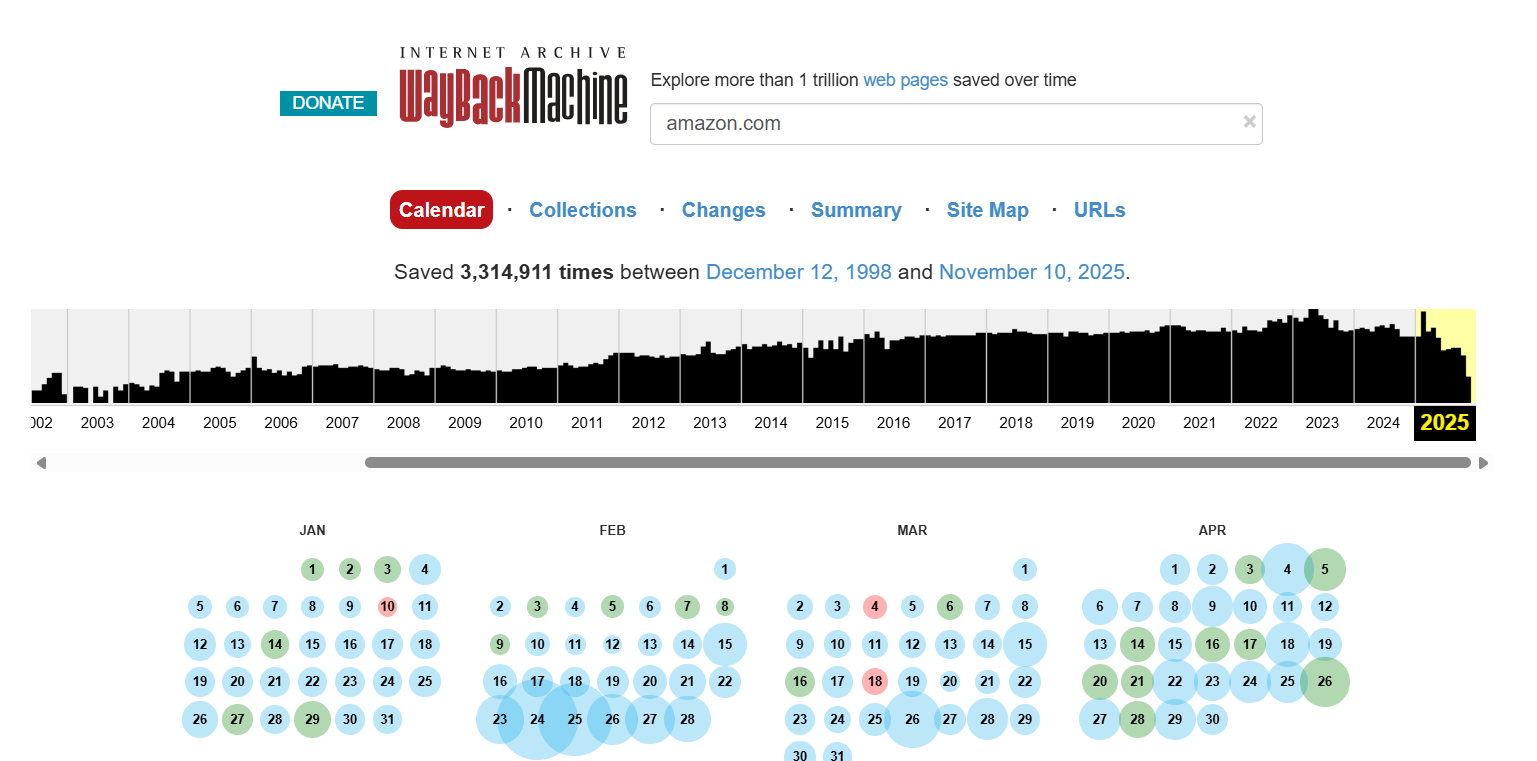
After entering a URL, the Wayback Machine shows a calendar. This calendar lets you pick the best version of your website to recover.
Creating a free account
Creating a free account on archive.org has its perks. You can save your favorite archives and get notified about new captures. But, it’s important to know that even with a free account, there are limits to what you can access.
Searching for Archived Versions of Your Website
To find deleted website content with the Wayback Machine, we first need to search for archived versions. This step is key to getting back lost content.
Entering Your Website URL
The first thing to do is enter your website’s URL. It’s important to know how to format URLs and handle changes like redirects or domain updates.
Format Requirements for URLs
Make sure your URL is in the right format. The Wayback Machine works with or without “http://” or “https://” at the start. For example, “example.com” is okay instead of “https://example.com”.
Handling Redirects and Domain Changes
If your website has changed domains or uses redirects, use the old URL for the time you want to recover. For example, if you moved from “oldsite.com” to “newsite.com”, search for both to get all your content.
Understanding the Calendar View and Capture Dates
After putting in your URL, the Wayback Machine shows a calendar view. This view shows when your site was crawled and archived. It helps us pick the best dates for recovering content.
The calendar highlights dates with snapshots. Look for dates near when your content was last available or when big changes happened.
Identifying the Best Archived Version to Recover
After finding possible dates, we need to look through the snapshots to pick the best one. Here are some tips:
- Find snapshots with the most complete content.
- Make sure the archived pages work and have the info we need.
- Compare snapshots from the same time to find the most accurate version.
By carefully checking the archived versions and picking the best one, we can recover deleted website content with the Wayback Machine.
Navigating Through Archived Website Snapshots
The Wayback Machine is a powerful tool for exploring archived website snapshots. It’s key for getting back deleted website content. We can see how our website looked at different times.
Using the Timeline Feature
The timeline feature is a big part of the Wayback Machine. It lets us see and move through our website’s capture dates. This helps us find the best snapshots for recovering content.
Browsing Through Different Capture Dates
Looking at different capture dates, we see how our website has changed. The timeline uses colors to show each capture’s status.
Color Coding Explained
Colors tell us if a capture was successful or not. A green bar means it worked, while a red bar means there was a problem.
Identifying Complete vs. Partial Captures
It’s important to know if a capture is complete or partial. A complete capture has the whole webpage, but a partial one might only have some parts.
Dealing with Partially Archived Pages
When we face partially archived pages, we need to figure out what’s there and what’s not. We might have to check several captures to get all the information we need.
| Capture Date | Status | Content Availability |
|---|---|---|
| 2022-01-01 | Complete | Full content |
| 2022-02-01 | Partial | Limited content |
| 2022-03-01 | Complete | Full content |
How to Extract and Save Recovered Content
After finding the archived version of your website, you need to save the content. There are a few ways to do this, depending on what you want to save.
Copying Text Content Manually
The easiest way to get text is by copying it yourself. Go to the archived page, pick the text you want, and copy it into a document. This works well for small texts.
Saving Complete Web Pages
At times, you might need to save a whole web page. You can use your browser’s save options for this.
Using Browser Save Functions
Most browsers let you save web pages fully. Just go to the archived page, right-click, and choose “Save As.” Or use the shortcut (Ctrl+S on Windows or Command+S on Mac). Pick “Web Page, Complete” to save everything as it is.
Creating PDFs of Archived Pages
Another way is to save the page as a PDF. This keeps the layout and design the same. To do this, go to the archived page, open the print dialog (Ctrl+P on Windows or Command+P on Mac), and choose “Save as PDF” as the printer.
Extracting Images and Media Files
To get images or other media, right-click on the image and choose “Save Image As.” For other media, look in the page source for the file URL.
Using Browser Extensions for Easier Saving
There are browser extensions that make saving web pages and their assets easier. These tools can help you save and organize your content more efficiently.
| Method | Description | Best For |
|---|---|---|
| Manual Copying | Copying text manually from the archived page. | Small amounts of text. |
| Browser Save As | Saving the complete web page using the browser’s save function. | Complete web pages with original formatting. |
| PDF Creation | Saving the page as a PDF. | Preserving layout and design. |
Recovering Specific Website Elements
The Wayback Machine is a great tool for getting back lost website parts. It’s like a digital library that keeps content safe. This way, important info stays available forever.
Retrieving Lost Blog Posts
Many people use the Wayback Machine to find old blog posts. These posts might have been deleted by mistake, hacked, or moved. The Wayback Machine helps bring them back.
Recovering Product Descriptions
Online stores can also use the Wayback Machine. It helps them get back product descriptions that are gone. This saves a lot of time and effort.
Extracting Code Snippets and Scripts
Web developers find the Wayback Machine useful too. They can get back code snippets and scripts from old websites. This is helpful for fixing problems or moving to new platforms.
Finding Deleted Images and Media
The Wayback Machine can also find deleted images and media. This is key for keeping a website’s look and feel the same.
To show how it works, here’s a quick overview:
| Content Type | Recovery Capability |
|---|---|
| Lost Blog Posts | High |
| Product Descriptions | High |
| Code Snippets and Scripts | Medium |
| Deleted Images and Media | Medium |
Using the Wayback Machine, people can get back many website parts. This keeps their online presence strong.
Troubleshooting Common Wayback Machine Issues
The Wayback Machine is a powerful tool, but it’s not perfect. It can have issues that make it hard to recover deleted website content. Knowing how to fix these problems is key.
Dealing with Missing Archives
Missing archives are a common problem. If you can’t find a specific website version, try different dates. You can also use the “Search” function to find what you need.
Handling Broken Links within Archived Pages
Broken links in archived pages can be a pain. To fix this, you can manually change the URLs. Or, use the Wayback Machine’s link correction tool.
Working Around JavaScript and Dynamic Content Limitations
The Wayback Machine sometimes struggles with JavaScript and dynamic content. To get around this, look for other archives. Or, use browser extensions that can show dynamic content.
What to Do When Pages Don’t Display Correctly
If pages don’t show up right, try reloading them. Check the HTML source code for errors. The Wayback Machine’s “Changes” feature can also help spot differences.
| Issue | Troubleshooting Step |
|---|---|
| Missing Archives | Check different dates or use the “Search” function |
| Broken Links | Manually correct URLs or use link correction feature |
| JavaScript and Dynamic Content | Use alternative archives or browser extensions |
| Pages Not Displaying Correctly | Reload page, check HTML source code, or use “Changes” feature |
Alternative Tools for Content Recovery
The Wayback Machine isn’t the only way to get back deleted website content. Other tools can help when the Wayback Machine doesn’t work. These alternatives are lifesavers.
Google Cache as a quick alternative
Google Cache is a fast and often overlooked tool for content recovery. It saves cached versions of web pages. You can access these when the live page is gone. To find Google Cache, type “cache:” and the URL in Google’s search bar.
Other web archives beyond Wayback Machine
There are many web archives for content recovery:
- Archive.today: A European archive with different content than the Wayback Machine.
- WebCite: Used for academic citations, it archives web pages in scholarly works.
- Library of Congress Web Archives: Focuses on culturally significant websites.
Archive.today
Archive.today is great for European websites or content not well-represented in the Wayback Machine.
WebCite
WebCite is key for academic and research needs. It ensures cited web pages stay accessible.
Library of Congress Web Archives
The Library of Congress Web Archives are a treasure trove for cultural heritage and significant events.
Content recovery services and their costs
For critical content, professional services are available. These services can be expensive, from a few hundred to several thousand dollars. The cost depends on the complexity of the recovery.
| Service | Cost | Use Case |
|---|---|---|
| Google Cache | Free | Quick recovery of cached pages |
| Archive.today | Free | Recovering European or less-indexed content |
| Professional Recovery Services | $100-$5000+ | Critical content recovery requiring expertise |
Preventing Future Content Loss
To avoid losing content, we need strong backup plans and good content management. We can protect our website’s content with a few important steps.
Regular Website Backups: Methods and Tools
Regular backups are key to getting back lost content. Tools like WordPress Jetpack or BackupBuddy make this easy. They let us set up daily or weekly backups, keeping our content safe.
Content Management Best Practices
Good content management is also essential. This means organizing content well, using categories and tags smartly, and giving proper credit. This way, we can find and restore content easily if it’s lost.
Using Version Control for Website Content
Version control systems like Git track content changes. This lets us go back to older versions if needed. It’s great for teams where many people are editing content.
Conclusion
Recovering deleted website content can seem hard, but the Wayback Machine makes it easier. We’ve shown how to use it to get back lost data. This tool is a great way to recover deleted content.
The Wayback Machine lets you see old versions of websites. This helps users get back content they thought was gone. Knowing how to use it helps keep your online space safe and prevents losing more content.
It’s important to know the Wayback Machine’s limits and possible problems. This knowledge helps users recover content smoothly. It ensures they get the content they need.
In short, the Wayback Machine is a key tool for getting back deleted website content. By using it and taking steps to prevent loss, users can keep their online presence strong.
FAQ
What is the Wayback Machine, and how does it work?
The Wayback Machine is a digital archive of the internet. It captures snapshots of websites at regular intervals. You can access and view these snapshots even if the original content is gone.
How can I recover deleted website content using the Wayback Machine?
To find deleted website content, go to the Wayback Machine. Type in your website’s URL and look through the snapshots. Pick the version you need and save the content manually.
What types of content can be recovered using the Wayback Machine?
You can recover text, images, and media files using the Wayback Machine. But, how much content you can find depends on how often the site was crawled.
How do I know if the Wayback Machine has a copy of my website?
Check if the Wayback Machine has your website by typing in your URL. If it does, you’ll see a calendar showing when it was captured.
Can I recover content from a website that was deleted a long time ago?
Recovering content from a long-deleted website depends on when the Wayback Machine last visited. If it was there before the content was deleted, you might find it.
Are there any limitations to using the Wayback Machine for content recovery?
Yes, there are limits. The Wayback Machine doesn’t save every page or update. It also misses dynamic content and not all sites are crawled often.
Can I use the Wayback Machine to recover content from a website that I don’t own?
Yes, you can use the Wayback Machine for any archived website. But, remember to check copyright and usage rights when using the content.
Are there alternative tools to the Wayback Machine for recovering deleted website content?
Yes, you can try Google Cache or other web archives. Professional services are also available, but they might cost money.
How can I prevent future content loss on my website?
To avoid losing content, make regular backups. Follow best practices for content management. Use version control and consider your own web archives.
Is it possible to recover deleted website content if the Wayback Machine doesn’t have it?
If the Wayback Machine doesn’t have what you need, try other web archives or professional services. Regular backups and version control can also help.
How often does the Wayback Machine update its archives?
The Wayback Machine updates its archives at different times. This depends on how popular and often crawled a site is.