

Key takeaways
- Learn how to download a full website backup from an internet archive with our step-by-step guide. We walk you through the process.
- Archive basics, snapshots, downloads, and practical Wayback Machine workflows.
- Use the matching free tool or request expert help when you are ready for the next step.
On this page
Have you ever felt that sinking feeling when a cherished site vanishes? Perhaps it was a portfolio, a blog with years of memories, or a small business page. That digital piece of your history is suddenly gone. It’s a modern-day loss that leaves many wondering if there’s any way to get it back.
Thankfully, massive digital libraries like the Internet Archive exist. They work tirelessly to preserve our collective online history. Their most famous tool, the Wayback Machine, is a remarkable resource. It has captured over 452 billion web pages since 2001.
This guide explores the practical steps for recovering your lost online content. We will walk you through the entire process. You will learn about specialized tools and command-line applications that can help. We will also be honest about what is achievable, outlining both the fantastic possibilities and the real-world limitations.
Key Takeaways
- The Wayback Machine is a vast digital library preserving web history.
- Recovering a lost site is a technically feasible process.
- Specialized tools exist to facilitate the retrieval of archived content.
- Understanding the limitations of what can be restored is crucial.
- This guide provides a professional, step-by-step walkthrough for the process.
Introduction: Exploring Internet Archives and Website Backups
Digital content faces constant threats from server failures, expired domains, and technological obsolescence. The Internet Archive’s Wayback Machine has preserved over 452 billion web pages since 2001. This creates an invaluable repository spanning decades of online history.
Why Archiving Matters for Websites
Website preservation has become essential for protecting against data loss. It maintains historical records of web presence that would otherwise vanish. Archived pages allow users to view past versions even when the original site is gone.
This safety net protects valuable digital assets from permanent disappearance. Businesses and individuals rely on these archives to recover critical information.
Setting the Stage for Our How-To Guide
We will explore scenarios where retrieving archived content becomes necessary. These include lost website hosting, expired domains, or recovering historical site versions.
Our guide covers technical requirements, tool options, and realistic outcomes. We address both the possibilities and limitations of working with archived material.
While archives provide crucial protection, they cannot replace proper real-time preservation strategies. Understanding this balance is key to effective digital asset management.
Understanding the Internet Archive and Wayback Machine
The cornerstone of web preservation efforts is a powerful, automated system known as the Wayback Machine. This tool serves as the primary gateway to the vast collections held within the digital library.
We will explore its fundamental operation and the realistic outcomes you can expect when using it for recovery purposes.
What is the Wayback Machine?
This system functions as a massive web crawler. It automatically follows links from one location to the next across the internet.
As it travels, it systematically saves copies of the web pages it encounters. These saved versions are called snapshots.
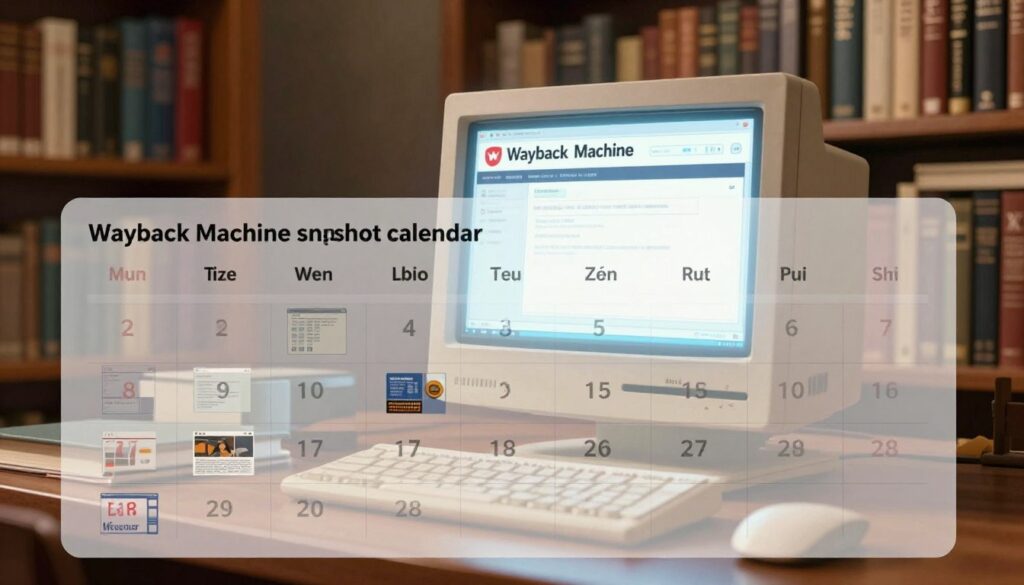
To find content, you enter a specific url into the search bar. The tool then displays a calendar highlighting each date a snapshot was captured.
The archive is not a deliberate collection but an automated recording of the web’s evolution.
Key Features and Limitations
While the wayback machine is remarkable, it has inherent constraints. Not all sites or individual page elements are archived.
The crawler might not be aware of every part of a website. This means you may only recover a portion of the original material.
Technical elements like specific JavaScript or CSS files are often missed. This can affect how a restored page looks and functions.
| Feature | Description | Consideration |
|---|---|---|
| URL-Based Search | Find historical versions by entering a specific web address. | Requires knowledge of the original URL structure. |
| Snapshot Calendar | View all archived dates for a given page visually. | Snapshots are not guaranteed for every day. |
| Content Fidelity | Preserves the core HTML and visible content of a page. | Interactive features and complex styling may be broken. |
Understanding these aspects is the best way to set practical expectations for your recovery project. It is an invaluable resource, but not a perfect replica of the live web.
How to download a full website backup from an internet archive
Multiple retrieval methods enable comprehensive site restoration from preserved digital collections. We will explore the primary approaches available for this process.
Overview of Download Methods
Several specialized tools facilitate the retrieval of complete site content. These solutions range from open-source applications to commercial software.
The three main options include Wayback Machine Downloader, the wget command-line utility, and paid services like Wayback Downloader. Each offers distinct advantages for different user needs.
| Tool Name | Type | Best For |
|---|---|---|
| Wayback Machine Downloader | Open Source | Technical users comfortable with Ruby or Docker |
| wget | Free Command-Line | Users preferring terminal-based solutions |
| Wayback Downloader | Commercial Software | Those seeking graphical interfaces and support |
The general workflow begins with identifying the specific snapshot URL. This typically follows the format showing a timestamp and original domain address.
These tools recursively retrieve content, saving it to your local computer. They create directory structures mirroring the original site organization.
The final result includes an index.html file and associated resources. This creates a functional local copy that serves as an excellent example of offline browsing.
Your choice depends on technical comfort level, operating system, and specific restoration requirements. All methods preserve the authentic structure and links rather than rewritten versions.
Downloading Tools and Techniques
We now turn to the practical execution of retrieving your preserved digital assets. Two powerful methods stand out for this task. Each offers a distinct approach to acquiring the necessary files.
Using Wayback Machine Downloader with Ruby or Docker
This tool provides a direct pipeline to the archive. First, ensure your system has Ruby version 1.9.2 or higher installed.
The installation is straightforward. Use the command gem install wayback_machine_downloader. If you encounter permission errors, prefix the command with sudo.
To begin the retrieval process, run the command with your target URL. For example, wayback_machine_downloader http://example.com initiates the process.
This machine downloader saves all available files to a local directory, typically ./websites/example.com/. It expertly reconstructs the original directory structure.
For those who prefer containerization, a Docker image is available. Pull it using docker pull hartator/wayback-machine-downloader. Then run the container with the appropriate volume mapping for your project.
Leveraging wget for Website Backup
Wget is a lightweight, command-line alternative. It is simple to install on both Mac and Windows systems.
A comprehensive command ensures you get all necessary components. The key is using the correct options for a complete snapshot.
| Option | Function | Impact |
|---|---|---|
| –recursive | Follows links from page to page. | Captures the entire site structure. |
| –page-requisites | Gets all files needed to display the page. | Ensures styles and images are included. |
| –convert-links | Adjusts links for local viewing. | Makes the local copy functional offline. |
| –domains | Restricts retrieval to specified domains. | Prevents grabbing unrelated external content. |
Both tools are excellent choices. They preserve the authentic URLs and link structures found in the original website code, providing a true historical copy.
Customizing Your Backup: Advanced Options
Moving beyond basic retrieval, sophisticated filtering capabilities allow for targeted content acquisition. The Wayback Machine downloader offers numerous customization options for precise control.
Using Timestamps and Snapshot Filters
Time-based filtering provides granular control over which historical versions you retrieve. The –all-timestamps option captures every available snapshot, creating separate directories for each date.
For targeted periods, use the –from and –to parameters. These accept various formats like years (2006) or year-month combinations. This example demonstrates precise time range selection.
Organize your retrieved files with the –directory parameter. Instead of the default path, specify a custom folder name for better organization.
Refining Downloads with Regex Filters and Exclusions
Content filtering ensures you only retrieve relevant files, which matters if you’re trying to retrieve Shopify data and only need product pages, not the whole domain. The –only filter restricts acquisitions to specific file types or directories.
For example, target only image files using patterns like *.gif or *.jpg. Conversely, the –exclude filter skips unwanted content.
Performance optimization is possible with the –concurrency setting. This allows multiple simultaneous retrievals, speeding up the process significantly.
For large website Wayback projects, increase the –maximum-snapshot limit beyond the default 100 pages. Each page contains approximately 150,000 snapshots on average.
Troubleshooting and Resolving Common Issues
The path to successfully recovering archived material often involves overcoming specific technical hurdles. We will address the most frequent problems users encounter during this process.
Handling Permission Errors and Download Failures
Installation issues sometimes occur with the Wayback Machine Downloader tool. When permission errors appear, adding “sudo” before the gem install command typically resolves administrative privilege requirements.

After the retrieval process completes, verification is essential. Locate the folder containing your acquired material, which usually defaults to a directory named web.archive.org on your computer.
Navigate through the folder structure until you reach your domain name folder. Inside, you will find the main index.html file that serves as your site’s entry point.
Double-click this file to open the homepage in your web browser. Because the convert-links option was used, you can navigate around the content as if it were hosted on a live server.
Sometimes incomplete acquisitions occur due to missing files in the archive. The preservation system may not have captured all elements during its original collection process.
Non-functional JavaScript or CSS elements indicate that dynamic files necessary for full functionality were not preserved. Check your connectivity and verify that archived versions actually exist for your target web address when failures occur.
Benefits and Drawbacks of Web Archive Backups
Web archive backups offer a valuable safety net, but their utility varies dramatically based on the original site’s structure. We must provide an honest assessment of both the remarkable recovery capabilities and the inherent limitations of these preservation systems.
Static Content vs. Dynamic Functionality
The fundamental benefit lies in content recovery when original materials are lost. Users can acquire preserved text, images, and essential site elements onto their local computer. This creates a functional offline copy with converted links for navigation.
However, significant limitations exist. The automated crawler may not capture every page or file during its collection time. Some sites remain unknown to the preservation system, resulting in partial recoveries at best.
Functionality issues are common when JavaScript and CSS code files are missing. Interactive features and complex styling often break in retrieved versions. Dynamic platforms like WordPress, or e-commerce stores where you need to retrieve Shopify site data, present particular challenges due to their server-side processing requirements.
Despite these constraints, countless owners have successfully recovered valuable materials that would otherwise be permanently lost. This approach serves as a crucial alternative when proper preservation procedures were not followed originally.
Conclusion
We have demonstrated that successfully retrieving a complete copy of a lost online presence is an achievable goal. Our guide has equipped you with practical knowledge of several effective methods.
Tools like the Wayback Machine Downloader and wget offer powerful solutions for different technical skill levels. Each method allows you to save valuable content, including essential text, links, and underlying code, directly to your computer.
It is crucial to remember that the final result depends entirely on what the preservation system originally captured for your specific site. Always use the correct domain name and follow the example commands we provided.
View this process as a vital recovery way, not a primary preservation strategy and if hosting itself is the issue, that’s covered in a separate guide. This knowledge empowers you to rescue important digital content, making the Internet Archive an invaluable resource for saving our shared web history.
FAQ
What is the Internet Archive’s Wayback Machine?
Can we obtain a complete, functional copy of a site from an archive?
What tools can we use to get a website backup from the Wayback Machine?
How can we customize which files or snapshots are downloaded?
What are common issues we might encounter during the download process?
What are the main limitations of a web archive backup?

About the author
About the Wayback Revive Editorial Team
Wayback Revive's editorial team includes website restoration specialists who work on Wayback Machine recovery, WordPress conversion, expired domain restoration, and SEO-safe rebuilds. Our team has helped restore 500+ websites for business owners, bloggers, agencies, and domain investors.